
-
Please try to be as accurate as possible with your search.
-
We can quote you on 1000s of specialist parts, even if they are not listed on our website.
-
We can't find any results for “”.
HMI Touchscreen Not Responding: Step‑by‑Step Fix Guide
When an operator panel goes quiet at the exact moment you need it, you can feel production time slipping away. I’ve spent two decades commissioning and supporting HMIs on packaging lines, water systems, material handling, and process skids. In that time one lesson has stuck with me: “touch not responding” almost never has a single cause, and the fastest path back to green lights is a disciplined sequence that isolates power, display, touch input, and control communications. This guide lays out the same step-by-step approach I use in the field, with pragmatic notes on when to stop, escalate, and avoid turning a nuisance into an outage.
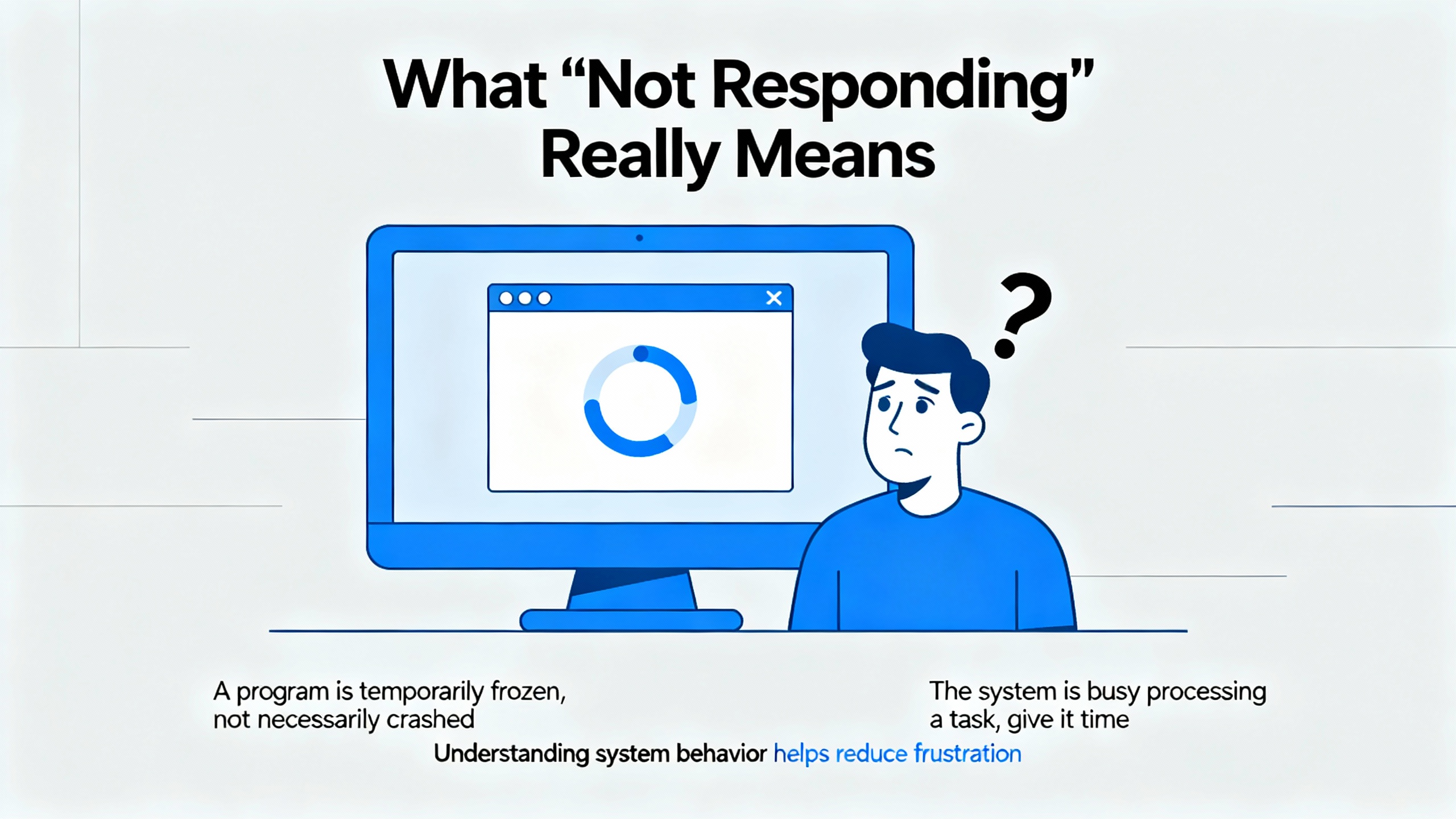
What “Not Responding” Really Means
Operators usually say “the screen doesn’t work,” but that phrase hides several distinct failure modes. One case is the picture looks normal, but touches do nothing. Another is the picture is fine, yet touches trigger the wrong buttons because the coordinates are misaligned, often called calibration drift. A third scenario is ghost touches, where the panel thinks a finger is pressed even when no one is near it, making any other input impossible. There’s also the situation where the panel responds to touch, but indicators and values are stale because the HMI lost communication to the PLC, which feels like a frozen UI from the operator’s point of view. Separating these modes up front makes every subsequent decision faster and safer.
Safety and Triage First
Before chasing ghosts, make the machine safe. Lockout/tagout as required, hand control to a safe state, and confirm that overrides and e-stops are available. If this is a panel PC or an HMI with USB, plug in a known-good mouse and keyboard. If the mouse moves and buttons click, your OS and application are probably fine and the issue is in the touch path or its settings. If the HMI lives on a moving door or arm, note its mechanical condition. Flex and twist on large doors can distort the front overlay and cause a “touch stuck” condition that disappears when the door is pressed flat. That detail can save you hours.

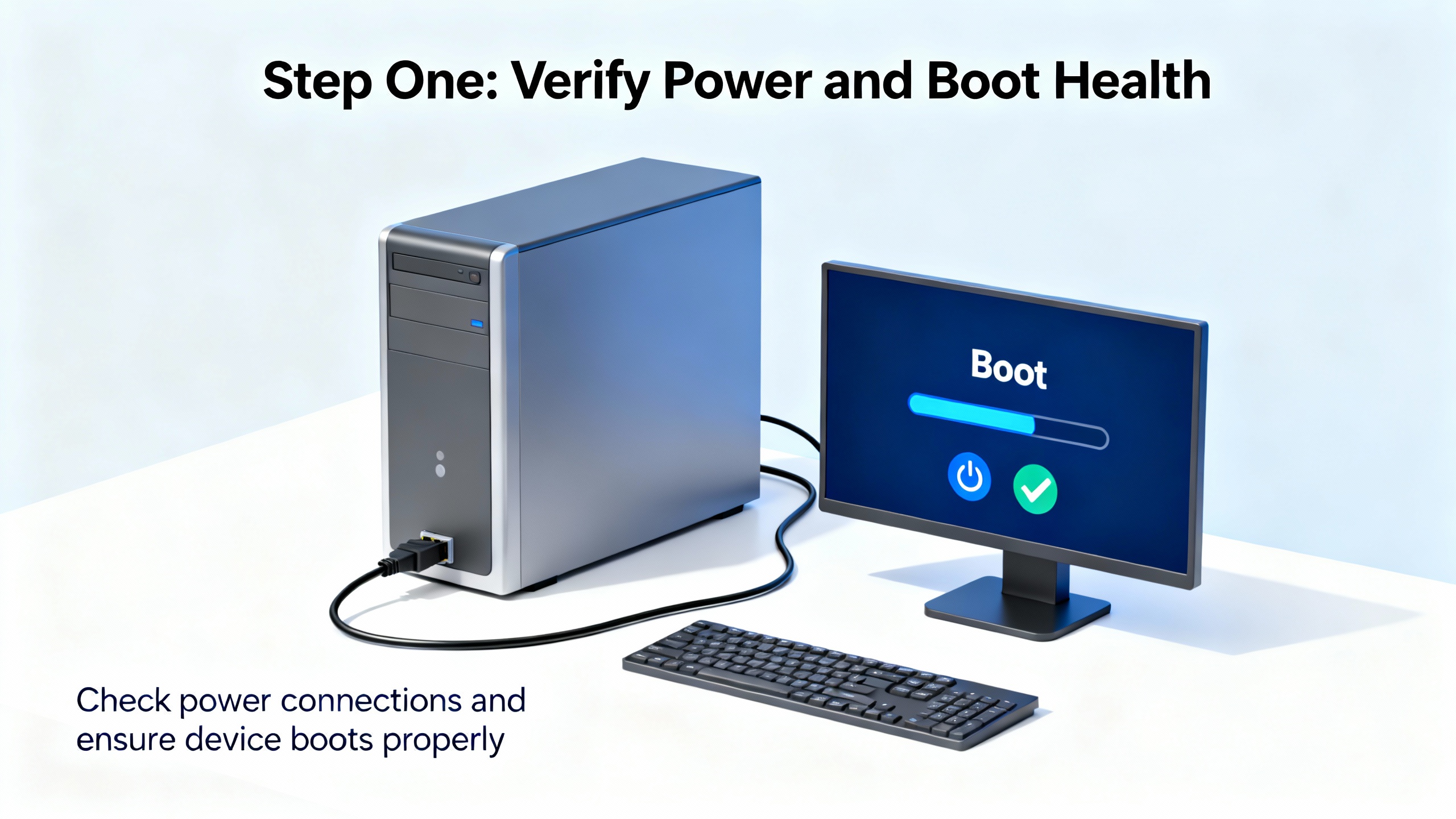
Step One: Verify Power and Boot Health
A surprising percentage of “unresponsive” screens are unstable power stories. Confirm the HMI is getting correct and stable supply voltage. If there’s a field power adapter, test with a known-good unit. Replace blown fuses and examine connectors for heat discoloration or looseness. According to DriveFix Electronics, simple power input faults are one of the most common root causes of frozen or unresponsive HMIs. If the unit appears to boot only to a splash screen or reboots intermittently, suspect aging power supplies or marginal memory and plan for repair or replacement after you restore operation. Build a habit of connecting critical HMIs to a UPS to smooth dips and brownouts.
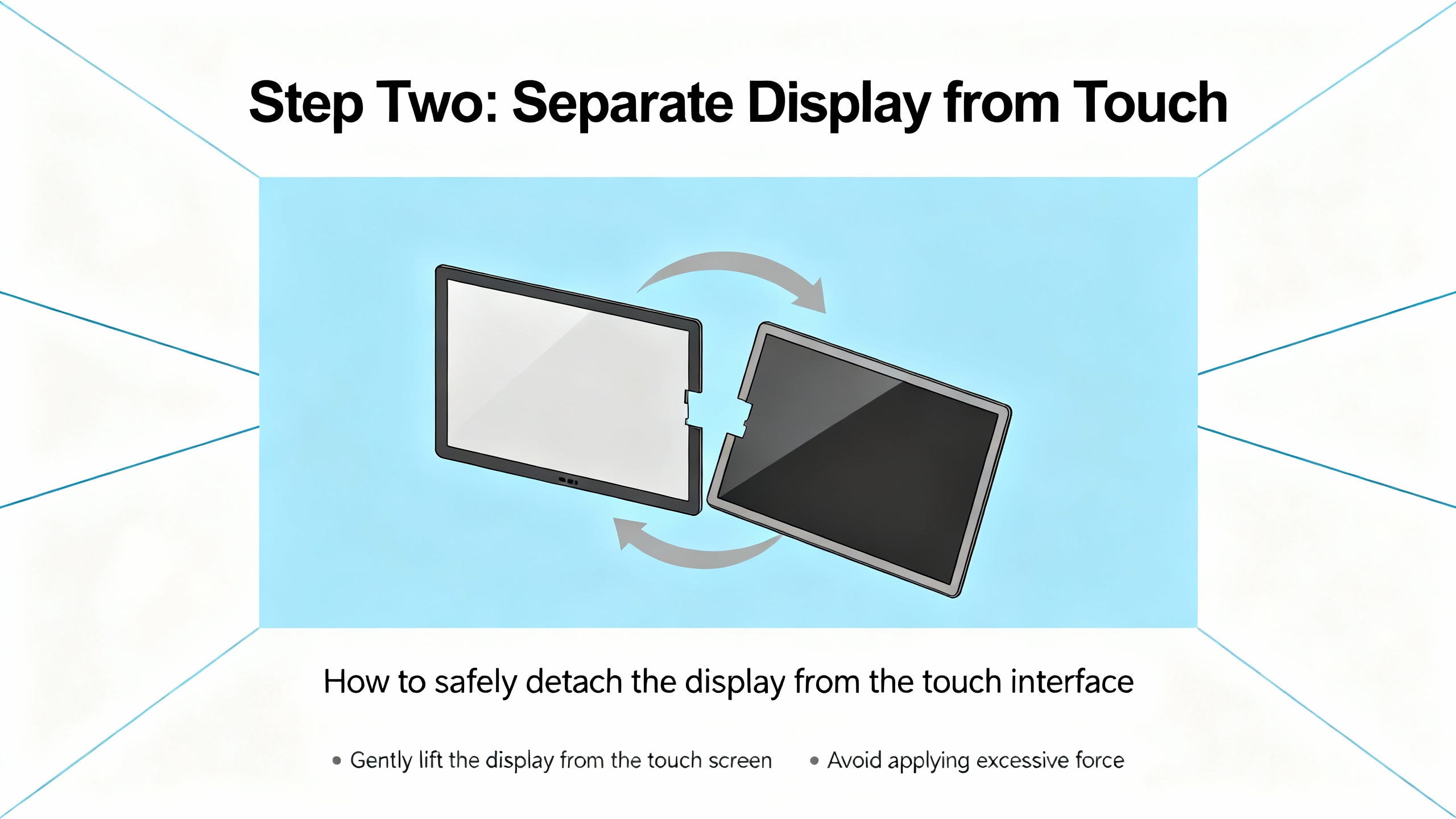
Step Two: Separate Display from Touch
If the panel is blank, treat it as a display path issue first. Adjust brightness, check for backlight glow in a dark room, and reseat video ribbons or cables. IVS Incorporated notes that aging backlights dim or flicker, while incorrect voltage or surges can shut displays down altogether. If the picture is solid but inputs fail, you’ve confirmed a touch subsystem problem rather than a display failure. Industrial Automation Co. points out that CCFL-backlit units often dim after roughly 30,000 hours of use. Dimming over weeks is a replacement planning window, not a surprise outage.
Step Three: Clean, Inspect, and Recalibrate
Worn resistive overlays and contaminated bezels regularly account for dead zones and random taps. Power down and clean the glass carefully with a lint-free cloth and an approved cleaner applied to the cloth, not directly to the screen. Interelectronix and DriveFix Electronics both recommend gentle cleaning and periodic calibration. Reboot and run the device’s calibration utility. If the cursor tracks correctly during calibration but misaligns again after a resolution change, repeat the calibration after the change. If you are on a Windows-based panel, ensure gestures such as press-and-hold for right-click are not interfering with rapid tap sequences common in HMIs, a point emphasized by experienced integrators on the Inductive Automation forum.
Step Four: Eliminate Mechanical and Ghost Touch Causes
Ghost touches are often blamed on firmware, but in my experience the mechanic wins half the time. Debris or a distorted overlay can simulate a constant press. There is a well-documented field case where a front gasket on a 15‑inch HMI warped the overlay just enough to register a permanent touch, rendering the panel unusable in the enclosure while working fine on the bench. The remedy was to reseat or replace the gasket and stiffen the door to ensure uniform compression around the bezel. Inspect for gasket misplacement, bowing doors, or retained pressure from the cabinet. For resistive screens, TouchTecs warns that bezel screws set too tight can trap the touch layer and pin the cursor to an edge; loosening to regain clearance can resolve a “stuck touch” instantly.
Electromagnetic interference is another frequent phantom. Variable frequency drives placed close to poorly shielded touch cables can cause intermittent false taps. DriveFix Electronics recommends routing HMI cabling away from motor leads, verifying shields and grounds, and correlating the behavior with nearby equipment running. If ghosting lines up with a large motor starting, treat EMI as your primary suspect.
Step Five: Reseat Connectors and Verify Cables
Touch panels connect to controllers via fragile ribbons and fine-pitch headers. Reseat every touch and display connector you can access safely. Inspect for corrosion, bent pins, and wear from vibration. Swap in a known-good cable when possible to eliminate an entire branch of possibility. This is one of the fastest wins in the field because loose or partially seated connectors are common after maintenance or thermal cycling, as highlighted by multiple repair providers, including DriveFix Electronics and Interelectronix.

Step Six: Validate Drivers and OS Touch Settings
Windows and Linux both ship generic HID touch drivers, but vendor-provided drivers are often more stable for specific controllers. Integrators on the Inductive Automation forum recommend pinning a known-good driver version in production and avoiding casual updates. Calibrate through the vendor utility, disable conflicting gestures, and remove duplicate or competing HID devices in Device Manager so only the intended touch interface is active. If your app requires legacy resistive “click on pen lift” behavior, OnLogic and Inductive Automation note that EETI eGalaxTouch utilities can emulate these inputs. For data entry, the Windows Touch Keyboard is preferred over the legacy OSK; on modern Linux with Wayland, plan OSK behavior carefully because some older tools do not work system-wide and full-screen kiosk sessions can hide extensions.
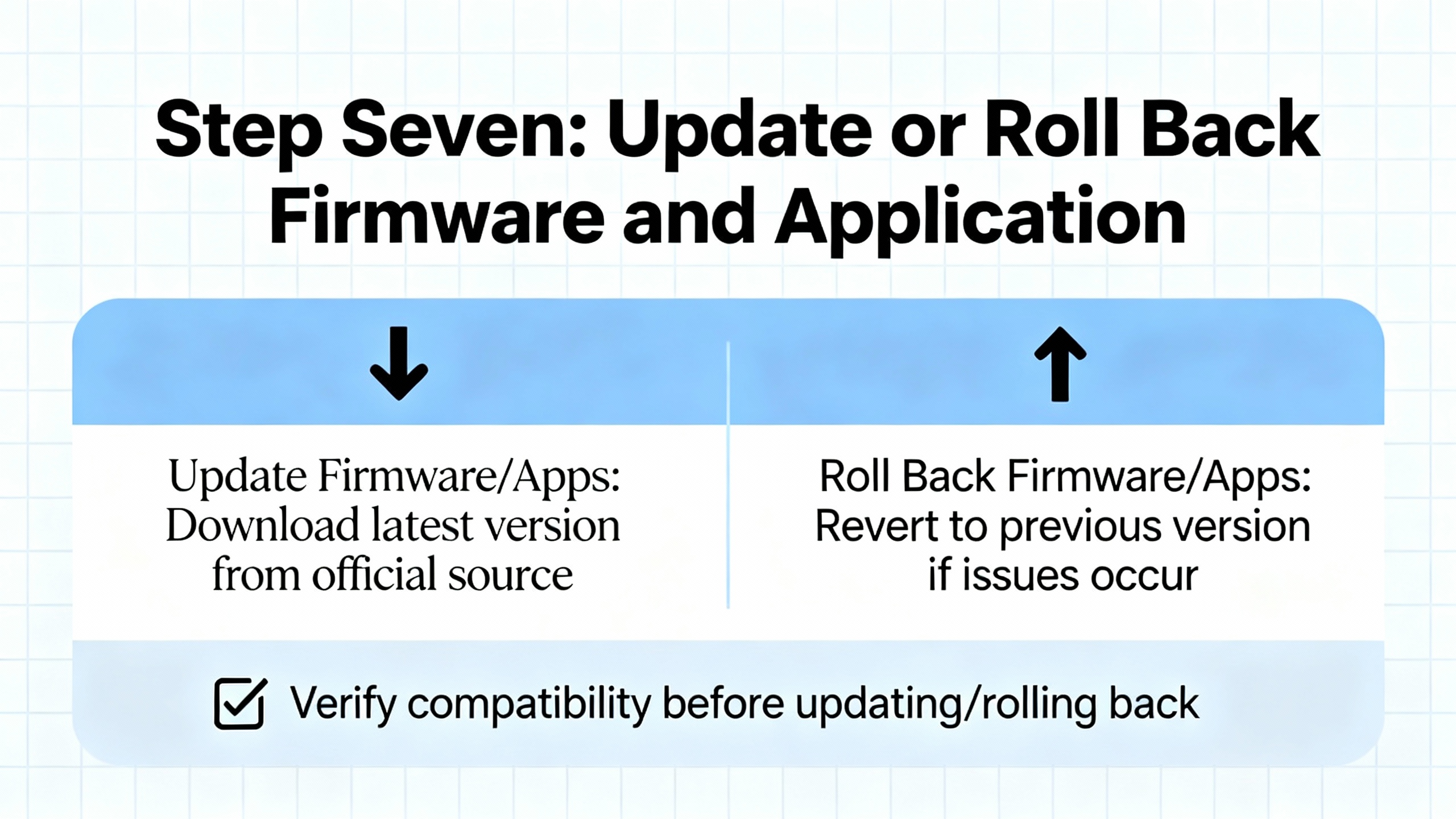
Step Seven: Update or Roll Back Firmware and Application
Corrupted firmware or mismatched runtime versions can freeze touch or ignore input. DriveFix Electronics and Interelectronix advise updating to OEM-verified firmware and reinstalling the runtime when corruption is suspected. Always secure validated backups before any reset. Treat a factory default reset as the last resort after you have confirmed power, mechanical, driver, and connectivity causes. If you are on Allen‑Bradley hardware, Industrial Automation Co. recommends backing up the runtime file, such as a .MER on PanelView Plus, checking firmware compatibility, and verifying the Series before ordering replacements or attempting recoveries.
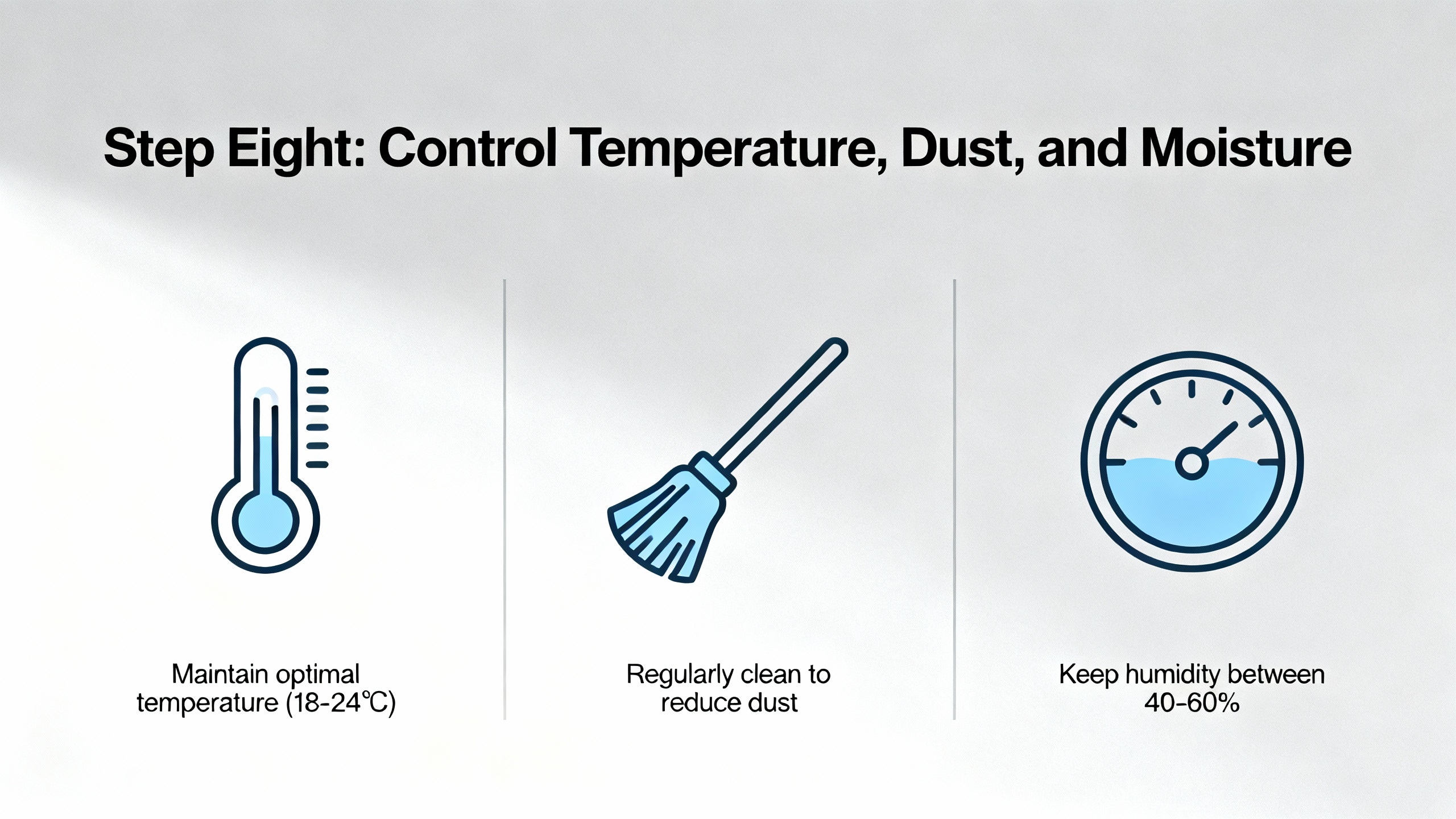
Step Eight: Control Temperature, Dust, and Moisture
Overheating degrades responsiveness long before it causes hard faults. Clean vents and fans, verify clearance around the panel, and check that enclosure cooling is operating. IVS Incorporated cites poor ventilation and dust buildup as frequent contributors to display and input issues. For outdoor or washdown areas, specify enclosures and gaskets rated for the environment and consider adding a heater or AC if ambient swings are severe. Some rugged panels target continuous operation from roughly −4°F to 158°F; if your conditions approach those edges, watch for thermal drift. Xinje also emphasizes humidity and dust as long-term degraders of touch performance, especially for resistive overlays.
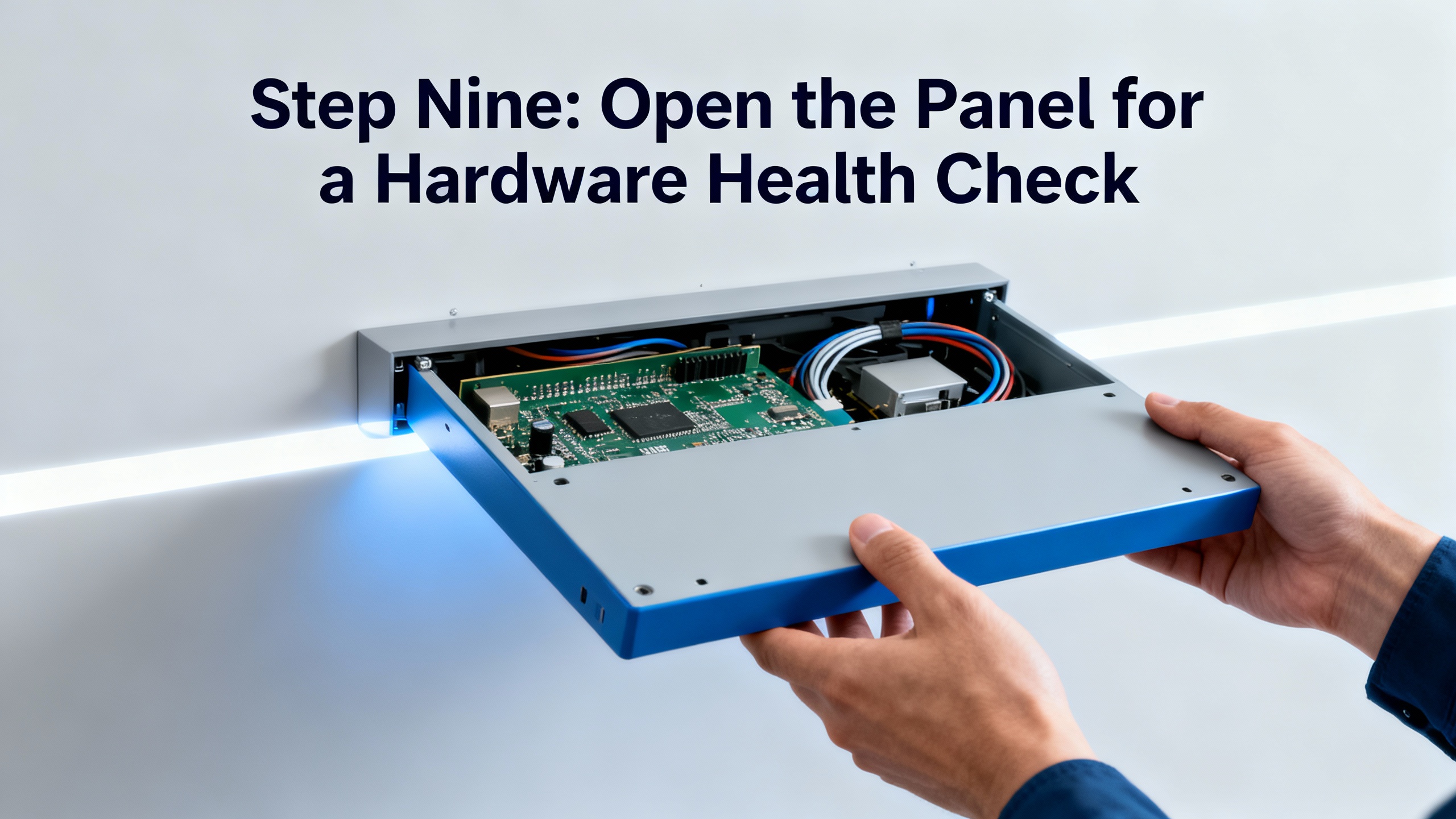
Step Nine: Open the Panel for a Hardware Health Check
If the steps above fail and you have proper authorization and ESD controls, inspect internal boards and connectors for swollen capacitors, burn marks, or loose daughtercards. Replace damaged PCBs with OEM parts where feasible, or prepare for professional repair if you lack spares. Do not disassemble sealed units without the manufacturer’s guidance; the risk of making a repairable unit non-repairable is real. Professional centers can replace touch sensors, refurbish backlights, and repair ports at a fraction of the replacement cost in many cases, a point repeated by multiple service firms, including IVS Incorporated and DriveFix Electronics.
Step Ten: Confirm HMI–PLC Communications
Many “frozen” panels are actually waiting on tags. Control.com notes that Ethernet and serial-based protocols must be stable for HMIs to read and write data, and loss of communication can render teach modes inoperable. Ping the HMI from the PLC network and the PLC from the HMI. Intermittent replies point to a cabling termination issue; re-crimp RJ45 ends and perform pin-by-pin continuity checks with a meter. Use a packet sniffer such as Wireshark to identify duplicate IPs, TCP port conflicts, or NAT misconfigurations. A firewall update on the OS can also block required ports; re-allow them and retest. Resolving a network collision will often make operators say “the touchscreen is back” even though you never touched the glass.
Step Eleven: Validate UX Assumptions
Sometimes the panel responds perfectly, but the design invites mis-taps or slowdowns that operators interpret as “unresponsive.” Inductive Automation advises designing primarily for single-touch and large, glove-friendly targets. Avoid relying on long-press or complex gestures in industrial UIs. Never implement touchscreen momentary jogs to a PLC tag without fail-safes; sticky bits risk unintended motion. If the interface requires frequent typing, embed an application-level keypad and minimize text entry with barcodes or ID devices because on-screen keyboards on resistive screens are frustratingly slow. Usability changes can eliminate chronic complaints more effectively than another round of calibrations.

Step Twelve: Decide on Repair, Replacement, or Upgrade
If you’ve isolated a hardware fault in the touch digitizer or logic board, weigh repair against replacement. Turnaround for refurbishment is often one to two weeks, and reputable suppliers offer warranties on refurbished units. When replacing, record the exact part number, power type, communication options, and firmware major version. Industrial Automation Co. recommends verifying mounting and cutout and keeping a spare for critical stations. If a model shows repeat vulnerabilities in your environment, consider a more robust family rather than reordering the same unit; field anecdotes note differences in robustness among product lines that matter in stainless doors and high-vibration racks.
A Quick Diagnostic Matrix You Can Use on the Floor
| Symptom at the panel | Likely cause | How to confirm quickly | Typical corrective action |
|---|---|---|---|
| Solid picture but dead touch | Calibration drift, driver issue, disabled HID | Mouse works, touch does not; calibration utility fails | Recalibrate; pin vendor driver; remove duplicate HID devices |
| Random inputs with no touch | Overlay pressure, gasket warp, EMI | Works on bench, fails in enclosure; correlates with nearby drives | Reseat gasket, stiffen door, reroute and shield cables, verify grounding |
| Cursor stuck at edge | Bezel pressing resistive layer | Loosen bezel and the touch returns | Adjust cabinet clearance; replace distorted overlay |
| Blank or dim display | Backlight aging, power fault | Faint glow or no glow; unstable supply voltage | Replace backlight/display; stabilize supply; add UPS |
| Slow or “laggy” taps | Overheating, app load, driver | Improves with cooldown; high CPU | Improve cooling; optimize app; update firmware/driver |
| Buttons highlight but values stale | PLC comm failure | No ping; duplicate IP in capture; firewall change | Re-crimp RJ45; resolve IP conflicts; re-open ports |
Capacitive vs. Resistive: What Changes in Troubleshooting
Capacitive screens detect changes in an electric field and excel at light taps and multi-touch, but they can struggle with thick gloves and strong EMI. Resistive screens register pressure from almost any object, including gloves, but their layered construction is more vulnerable to drift and bezel pressure. TouchPro and TouchTecs both detail drift and misalignment in resistive systems, while DriveFix Electronics and OnLogic emphasize EMI management and driver stability for capacitive controllers. In the field this means you should prioritize shielding and grounding on capacitive systems and prioritize mechanical clearance and calibration hygiene on resistive systems.
| Characteristic | Capacitive (PCAP) | Resistive |
|---|---|---|
| Glove compatibility | Limited without tuning | Strong with most gloves |
| EMI susceptibility | Higher; needs good shielding | Lower but not immune |
| Mechanical pressure issues | Less sensitive to bezel pressure | Sensitive to bezel/gasket pressure |
| Multi-touch | Supported and reliable | Generally single-touch |
| Typical field failure | EMI noise, driver mismatch | Drift, stuck edge from enclosure pressure |
Responsiveness Targets and What Good Feels Like
Responsiveness is not just a user-experience term. Nelson Miller Group defines it as the ability to complete a task within a specified time window, and it is one pillar of a robust system alongside observability and recoverability. Faytech describes the end-to-end touch response path from physical detection to display refresh, with component times measured in milliseconds. For industrial workloads, a practical goal is a total touch-to-visual-response time in the neighborhood of 10 to 30 milliseconds, with capacitive sensors often under 10 milliseconds for detection alone. Low-latency panels feel trustworthy and reduce operator re-taps that lead to errors. Keeping firmware current, streamlining application logic, and minimizing background processes all reduce latency and perceived lag.

Preventive Maintenance That Actually Prevents
Preventive maintenance is not a cleaning checklist you print and ignore. Interelectronix advises combining regular cleaning with timely firmware updates, calibration, and diagnostic monitoring to catch anomalies early. DriveFix Electronics adds that scheduled inspections and good backups reduce the cost and stress of rare but serious failures. On the driver side, the Inductive Automation forum community encourages documenting and pinning a proven driver version for production hardware and recording the full environment: driver build, OS build, touch utility configuration, and power settings to avoid accidental regressions. If your plant prefers predictability over tinkering, consider an annual maintenance contract with a provider who will handle firmware updates, hardware checks, and 24/7 response while keeping verified images and configuration documentation on hand.
When It Isn’t the Touchscreen
A clean, calibrated, and cool panel can still “act unresponsive” if the HMI application is waiting on a PLC bit that never updates. Control.com points out that even temporary network drops block tag reads and writes and can take equipment out of service. Treat comms as a first-class diagnostic step. Ping both directions, watch for intermittent loss, and inspect physical terminations. If pings succeed but tags don’t update, capture traffic to look for duplicate IP addresses or blocked ports. NAT can be useful, but each subnetwork must maintain unique addresses, and misrouted return paths can create bewildering, intermittent behavior. Firewalls on Windows can quietly update and block HMI ports; unblocking restores operations instantly. These findings change how you prioritize fixes in your root-cause analysis and prevent repeat calls.
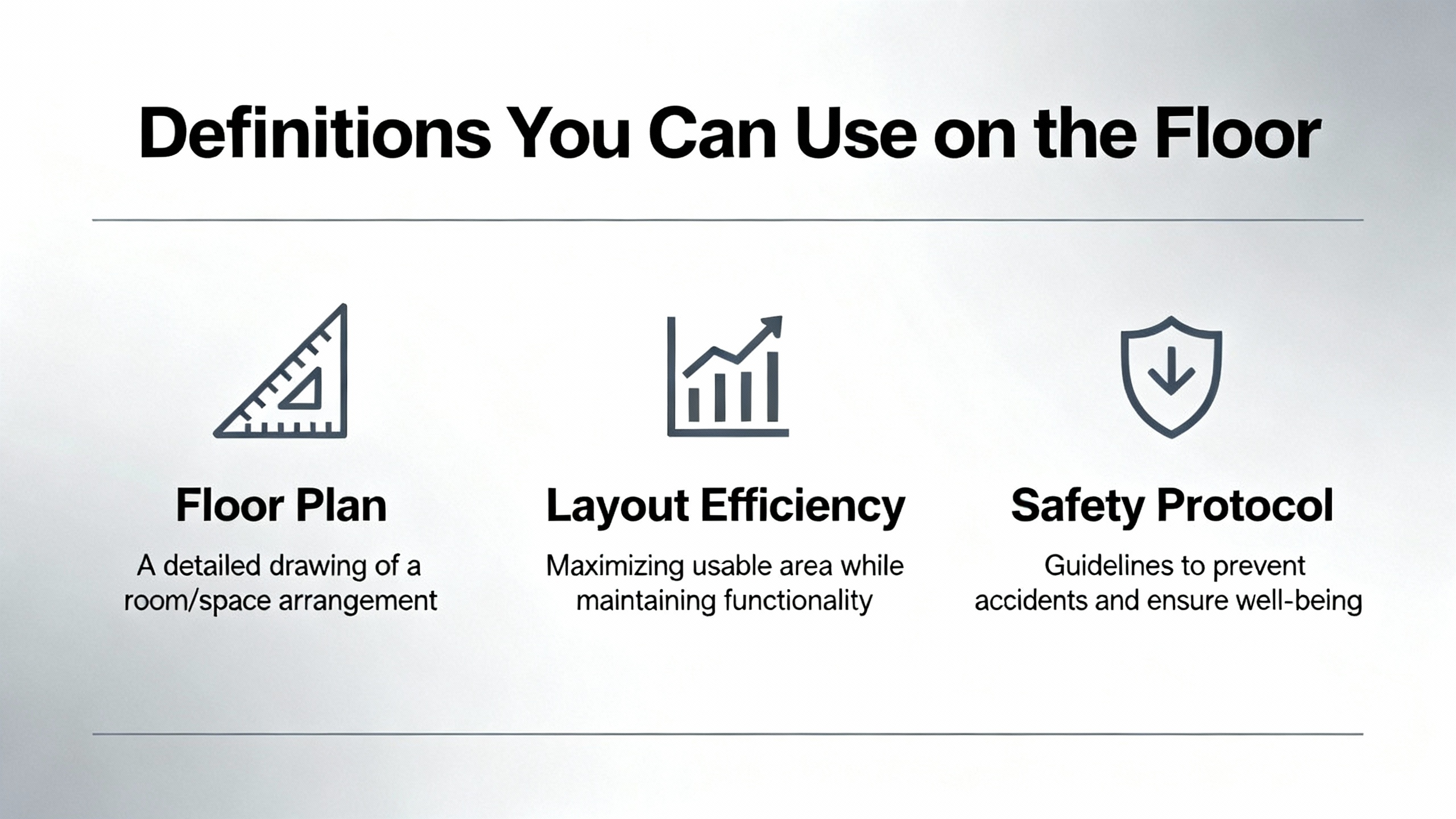
Definitions You Can Use on the Floor
An HMI is the operator-facing interface that displays process status and accepts commands. A PLC is the controller running the machine logic and feeding the HMI with tag values. A digitizer is the sensor layer that turns physical touches into coordinates the OS can understand. Calibration aligns those coordinates with on-screen targets so a touch lands on the intended button. Drift is the slow misalignment that grows with temperature, humidity, or mechanical stress. EMI is electrical noise from nearby equipment that injects false signals into sensitive inputs. Keeping these terms straight helps technicians explain findings crisply during a line-down call.
Practical Examples and Field Notes
On one bottling line, operators reported that taps “worked sometimes” for hours, then failed during a changeover. The actual cause was a door-mounted HMI flexing when the operator leaned in to reach valves, pushing the overlay just enough to stick. Stiffening the door and replacing a compressed gasket ended weeks of complaints. In another instance, a panel PC on a high-speed cartoner would freeze gently at random. The mouse worked, but touches were ignored. Rolling back to the vendor’s recommended driver fixed it permanently. An electrician had “helpfully” updated to a generic HID version during unrelated maintenance. Each example followed the same triage sequence: power, display, touch, comms, software, environment, and mechanics.
Documentation and Spares Save Nights and Weekends
The quiet champions of uptime are mundane: backups and labels. Industrial Automation Co. stresses identifying the precise model, power, ports, and series before ordering, and keeping a tested spare for critical stations. For runtime-based HMIs, back up the application file and keep a printed or PDF record of IP addresses, subnet masks, port rules, and NAT configurations. Pin a driver version and store the installer in your maintenance share. When a device fails at 2:00 AM on Thanksgiving weekend, the ability to swap a unit and restore a known-good image in minutes is the difference between a hiccup and a lost shift.
Short FAQ
How can I tell if the touchscreen or the application is to blame?
Plug in a mouse and keyboard. If the pointer moves and buttons click reliably while touch does not, the issue is in the touch path or its settings. If both are sluggish, suspect application load, firmware, or power and thermal problems.
Do screen protectors cause unresponsiveness?
Yes, especially on capacitive screens with thick or ill-fitting protectors. Remove the protector to test. If performance returns, choose a protector rated for your touch technology or omit it in harsh-duty enclosures.
Should I factory reset an HMI that won’t respond?
Only after you secure verified backups and exhaust power, mechanical, driver, and communication causes. A reset without a backup can turn a repairable inconvenience into a day-long rebuild.
Are Wake-on-Touch and on-screen keyboards reliable for plant use?
On modern Windows, Wake-on-Touch is supported and useful. On Linux Wayland desktops and older Windows, behavior varies. Inductive Automation and OnLogic recommend embedding a keypad in the HMI app for predictable entry, and minimizing typing altogether.
Sources and Credibility
The guidance above reflects hands-on integration work cross-checked with industry sources. Control.com provides practical communication diagnostics and maintenance insights on HMI–PLC networks. DriveFix Electronics outlines common touchscreen failures and repair paths and stresses the value of tested backups and last-resort resets. Inductive Automation and OnLogic share OS- and UX-level best practices for reliable touch behavior across Windows and Linux fleets. Industrial Automation Co. details early failure symptoms, backlight lifespans, and replacement planning. Nelson Miller Group emphasizes responsiveness as a design target with measurable latency. IVS Incorporated and Interelectronix cover power, thermal, and environmental care, while TouchTecs and TouchPro explain drift and enclosure pressure effects on resistive and capacitive screens. Siemens Support forums and the Inductive Automation forum reinforce the importance of driver choice and calibration discipline on Windows-based HMIs.
Closing
If you take nothing else from this guide, adopt a consistent sequence and stick to it. Make it safe, separate display from touch, neutralize mechanics and EMI, lock down drivers and comms, and only then reach for resets and replacements. That’s how a veteran systems integrator keeps lines running and keeps trust with production teams shift after shift.
References
- https://admisiones.unicah.edu/libweb/qodbQB/5OK107/c__more-hmi-programming-manual.pdf
- https://www.plctalk.net/forums/threads/redlion-cr3000-touchscreen-not-responding.135612/
- https://www.interelectronix.com/how-manage-and-maintain-embedded-hmis-field.html
- https://www.mochuan-drives.com/a-news-troubleshooting-common-issues-with-hmi-touch-screens
- https://drivefixelectronics.com/blog/comprehensive-guide-to-hmi-troubleshooting-and-repair
- https://gesrepair.com/5-reasons-your-hmi-touchscreen-may-be-suddenly-unresponsive/
- https://inductiveautomation.com/blog/optimizing-touchscreen-hmis-applications-for-perspective
- https://www.ivsincorporated.com/blog/why-hmi-display-failures-happen-and-how-to-fix-them
- https://nelsonmillergroup.com/what-is-responsiveness-and-how-does-it-affect-hmis/
- https://www.touchpro.us/post/industrial-touch-screens-common-problems-solutions
Keep your system in play!

Related articles Browse All
-
 amikong NewsSchneider Electric HMIGTO5310: A Powerful Touchscreen Panel for Industrial Automation2025-08-11 16:24:25Overview of the Schneider Electric HMIGTO5310 The Schneider Electric HMIGTO5310 is a high-performance Magelis GTO touchscreen panel designed for industrial automation and infrastructure applications. With a 10.4" TFT LCD display and 640 x 480 VGA resolution, this HMI delivers crisp, clear visu...
 -
 BlogImplementing Vision Systems for Industrial Robots: Enhancing Precision and Automation2025-08-12 11:26:54Industrial robots gain powerful new abilities through vision systems. These systems give robots the sense of sight, so they can understand and react to what is around them. So, robots can perform complex tasks with greater accuracy and flexibility. Automation in manufacturing reaches a new level of ...
 -
 BlogOptimizing PM Schedules Data-Driven Approaches to Preventative Maintenance2025-08-21 18:08:33Moving away from fixed maintenance schedules is a significant operational shift. Companies now use data to guide their maintenance efforts. This change leads to greater efficiency and equipment reliability. The goal is to perform the right task at the right time, based on real information, not just ...


- Q&A
- Policies How to order Part status information Shipping Method Return Policy Warranty Policy Payment Terms Email Marketing Policy VAT and Import Information
- Asset Recovery
- We Buy Your Equipment. Industry Cases Amikong News Technical Resources Why choose us
- Registered Address
-
32D Guomao Building, No.388, Hubin south Road, Siming district, Xiamen,Fujian, China

Leave Your Comment